Government of Ghana / Employee Pay ServicesStaying safe online

GOVERNMENT OF GHANA · EMPLOYEE PAY SERVICES

How to sign in to your GoG e-payslip

Select “Log in to portal” to open the employee application. Enter your Staff Number and password on its sign-in screen, then follow any verification requested.

By GoG ePay Services · Content updated

Log in to portal

Where do I enter my password?

Enter account details only in the employee application’s authentication flow. This public information website does not collect your password. Start from the official website instead of a copied authentication link.

Why can I not sign in?

Check your Staff Number and password. If you have not set up access, follow the registration guide. If you already have an account but cannot remember its password, use the application’s recovery option. Repeated errors should be referred to the verified support channel or your payroll administrator.
Official sources

WE’LL TAKE IT ONE STEP AT A TIME

Let’s get you set up,
then find your payslip.

Brand new to the portal, or just need a refresher?
Choose the guide that fits.

Sign in & find your payslip

STEP 01 / 4

Begin at the right address.

Select “Open the portal” to continue to the existing employee application.

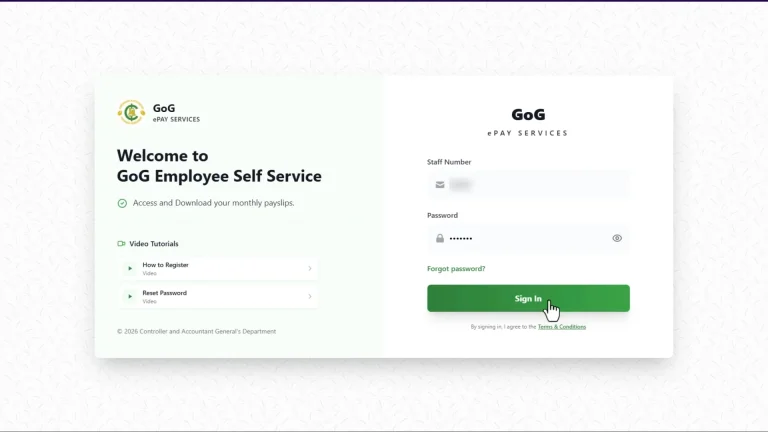
GoG Employee Self Service welcome and sign-in screen with credentials obscured
The portal has Staff Number and Password fields. Tap the image to enlarge.
  1. Check the portal address before entering your details.

Good to know You do not enter a password on this information website.

PORTAL ADDRESSgogepayservices.com
Open the portal

STEP 02 / 4

Welcome back.

Enter your Staff Number and Password, then select “Sign In”.

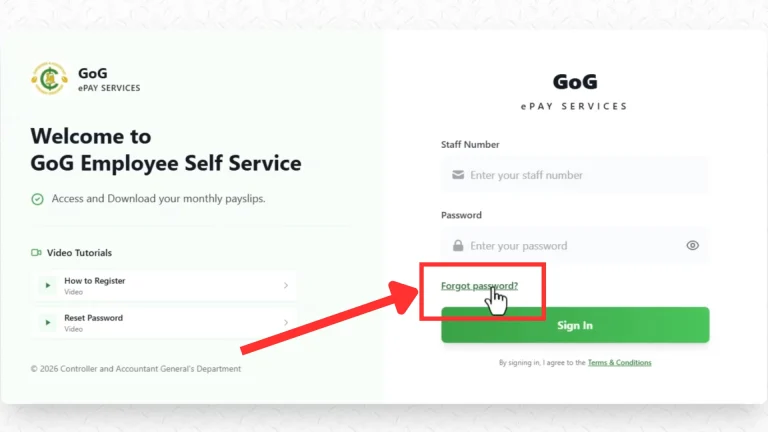
Portal sign-in screen highlighting the Forgot password link
Use “Forgot password?” if you cannot sign in. Tap the image to enlarge.
  1. Check your details before submitting.
  2. Follow any additional verification requested by the portal.

Good to know If you need to recover access, use “Forgot password?” and follow the portal’s instructions.

STEP 03 / 4

Give your payslip a moment.

Once signed in, open the payslip area and follow the options available in your account.

  1. Check the pay period.
  2. Review your earnings and deductions.
  3. Check the net pay amount.

Good to know For an unexpected deduction or missing payslip, note the period and contact your payroll administrator.

STEP 04 / 4

All done? Sign out.

Use the portal’s sign-out option when you finish, especially on a shared computer.

  1. Avoid saving your password on public devices.
  2. Keep any downloaded payslip private.
  3. Sign out and close the portal.

Good to know Remove downloaded payslip files from shared devices when you are finished.